First run & signing in
Signing in
Aletheia gates the app behind a sign-in. On the web app you'll land on a hosted sign-in page; sign in (or sign up) and you're taken to the Editor. On the desktop app, the same sign-in happens inside the window on first launch.
Each account gets its own private workspace — its own notebooks, notes, entities, and everything else. Two accounts can't see each other's corpora. If you're the workspace owner, your existing library is waiting for you the moment you sign in.
Accounts are per-workspace
Signing in with a different email creates a fresh, empty workspace rather than showing you someone else's notes — that's the isolation working as intended. Use the same account each time.
What a brand-new workspace looks like
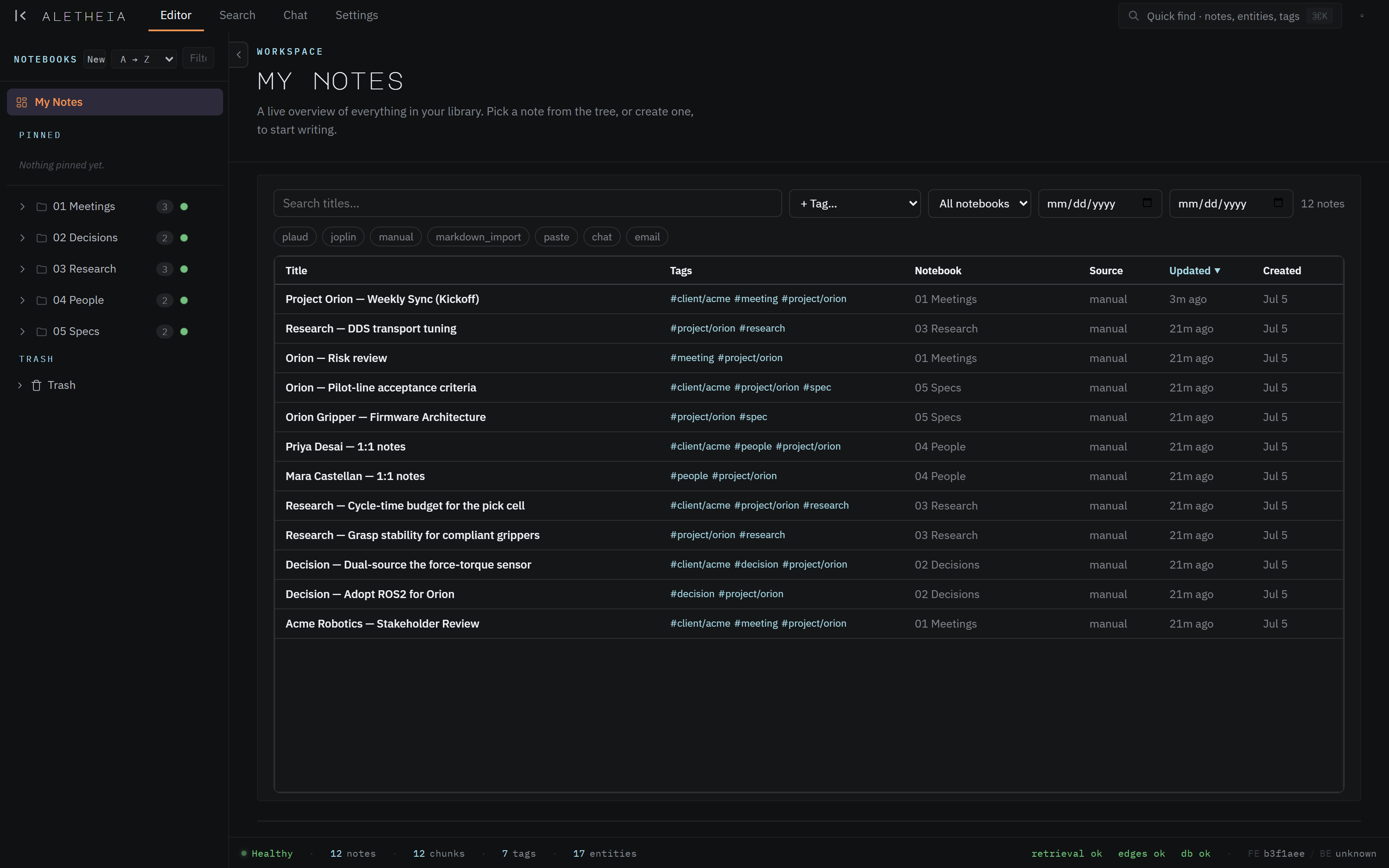
A new workspace starts nearly empty: an Inbox notebook, an empty Trash, and the
workspace ("My Notes") view telling you there's nothing here yet. The status bar reads
0 notes · 0 chunks · 0 tags · 0 entities. That's expected — you fill it by writing or
importing.
The first five minutes
A good on-ramp:
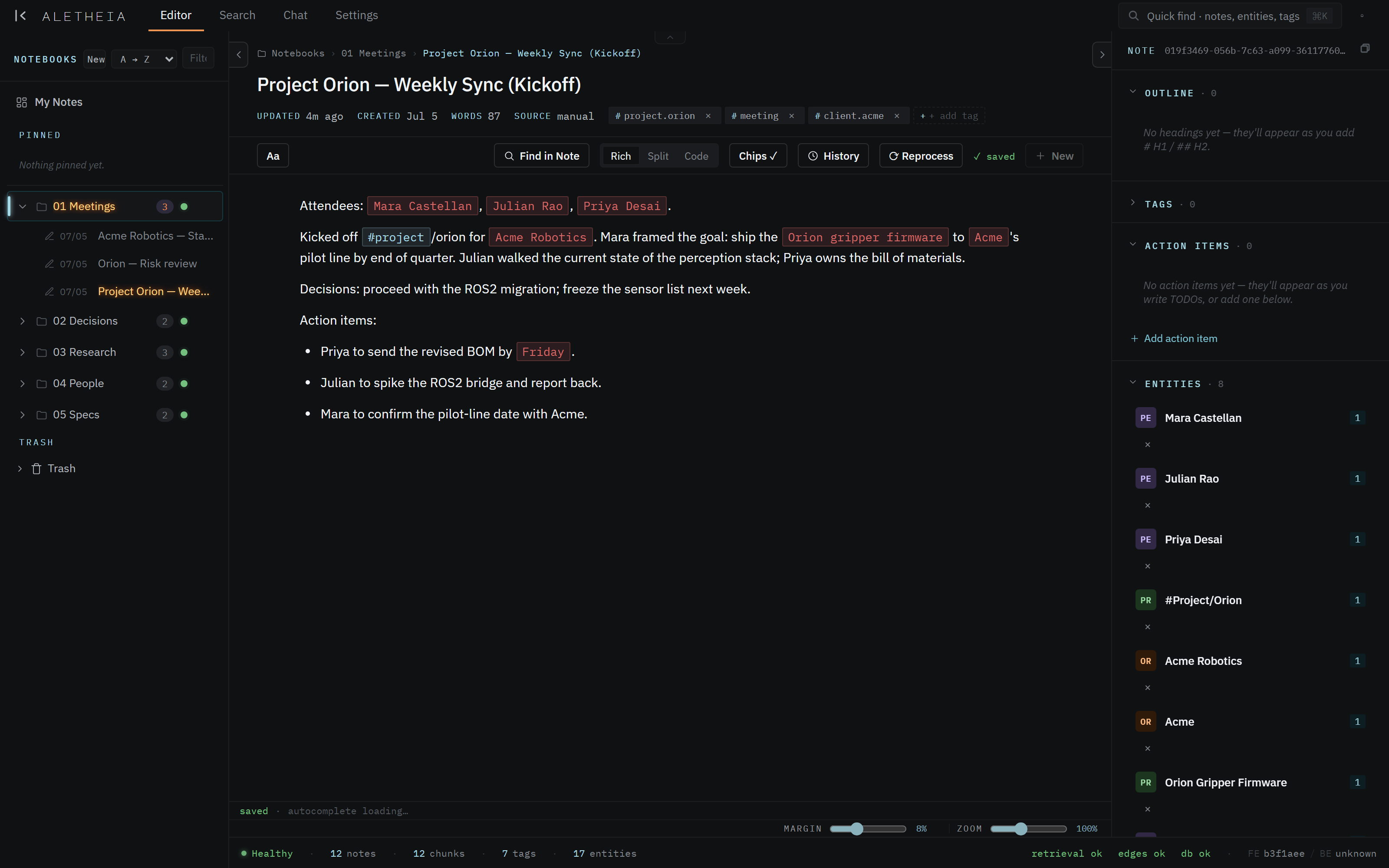
- Write one real note. Open the editor, click + New note, and paste in your last meeting's notes or a project brief. Save (it autosaves).
- Watch it come alive. Within a few seconds the sidecar on the right fills in the people and topics it found, and the status-bar counts tick up. That's extraction working.
- Make a couple of notebooks. Right-click in the notebooks pane → New note / subfolder
to sketch a structure (e.g.
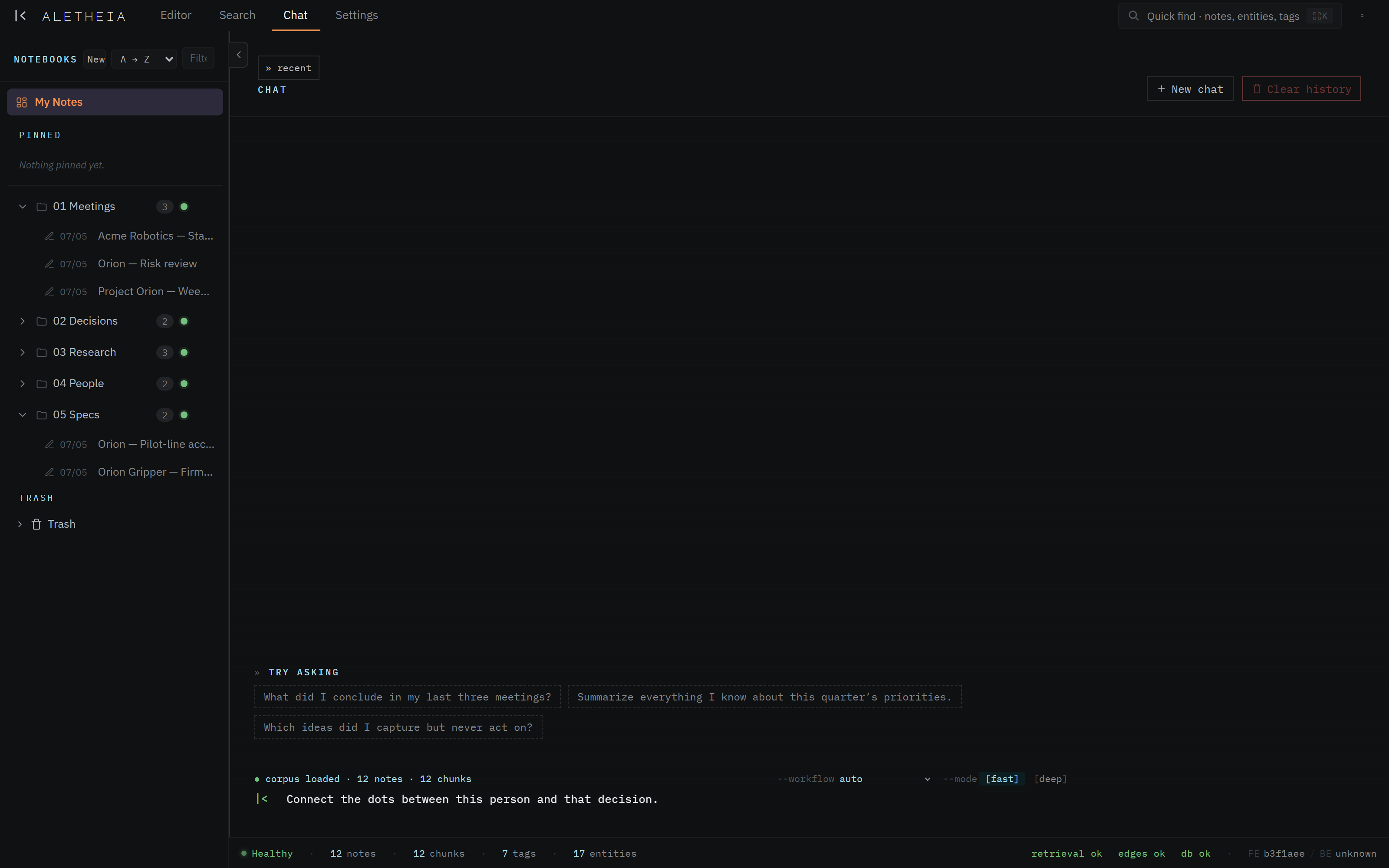
Meetings,Decisions,Research). Or let the autorouter file things for you. - Ask a question. Switch to Chat and ask something you know is in that note. You'll get an answer with a citation pill linking straight back to it.
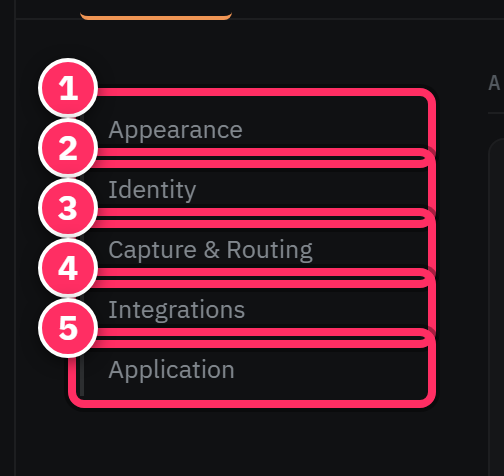
- Tell it who "you" are. In Settings → Identity, set your owner name so chat and "what's on my plate" know which person is you.
Connecting your AI (optional but recommended)
If you use Claude Desktop or Claude Code, spend two minutes wiring them to your corpus now — see Connecting a client. From then on your assistant can read and write your knowledge base directly.
Import first if you already have notes
Sitting on a Joplin vault or a folder of Markdown? Don't retype it — Sources & ingestion pulls it in and extraction enriches the whole lot automatically.
Next: The note editor →