The note editor
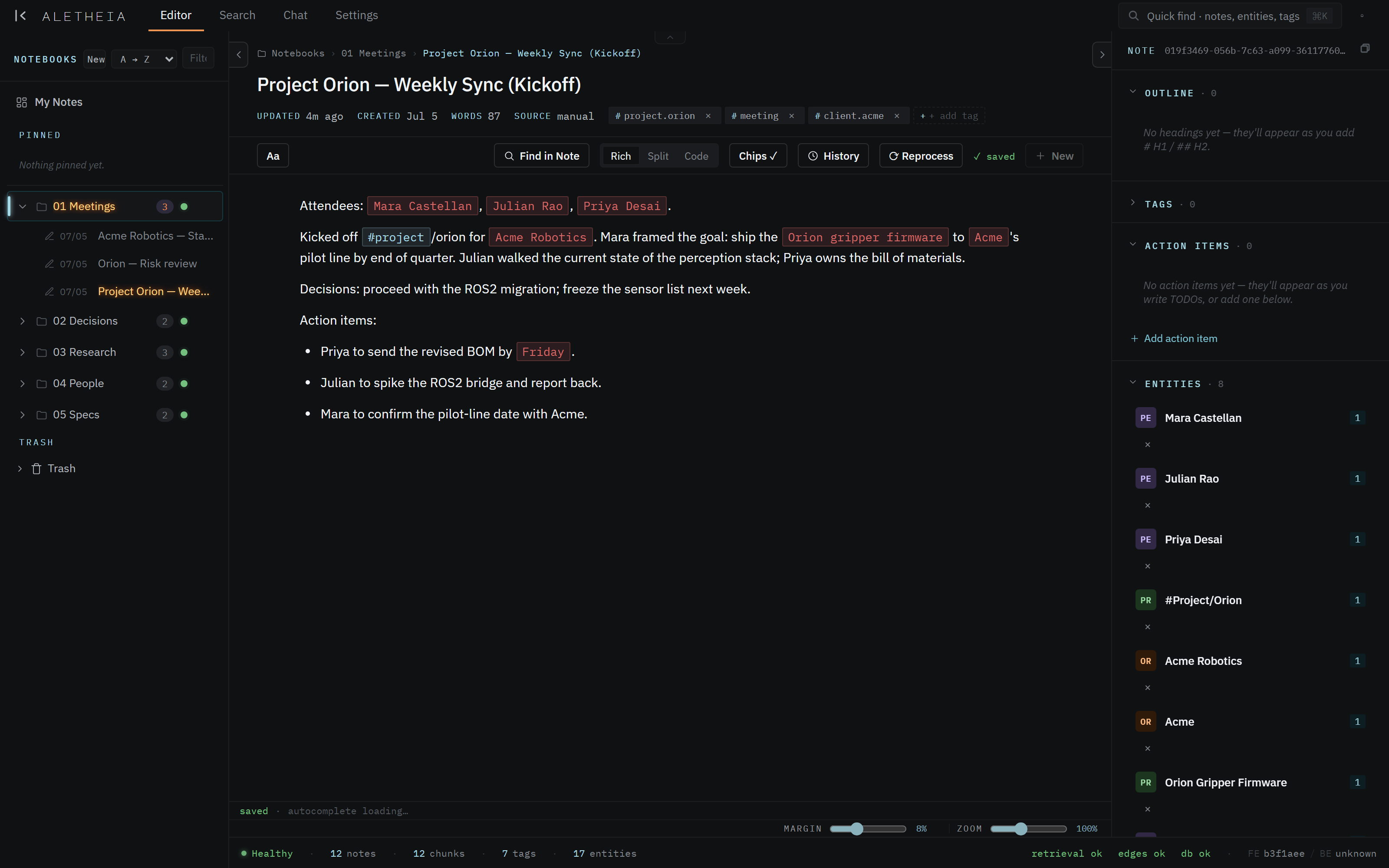
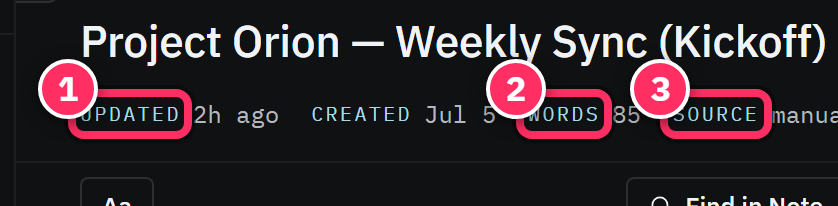
The editor is Aletheia's home surface — where you read and write notes. It pairs a rich-text/Markdown body with a live metadata sidecar that shows what the note is about.
The workspace (no note open)
Open the Editor with nothing selected and you get the workspace — a filterable table of your
entire library: title, tags, notebook, source, and dates. Search titles, filter by tag or
notebook, filter by source (manual, joplin, chat, email, …), or sort by any column.
It's the fastest way to eyeball everything you've got. Click any row to open it.
Opening & creating notes
- Open — click a note in the notebooks tree or the workspace table.
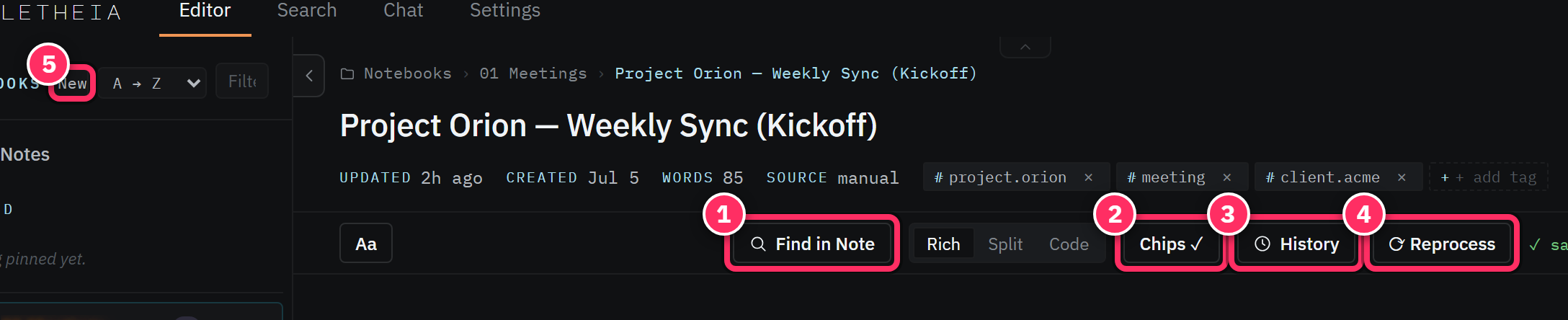
- Create — + New note (top-right of the editor) or right-click a notebook → New note. A new note is created, named, and opened for you.
- Notes autosave. The ✓ saved indicator in the toolbar confirms it; you never hit a save button.
The three view modes
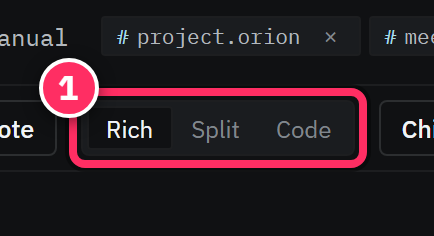
The segmented control in the toolbar switches how the body is shown:
| Mode | What you get | Use it when |
|---|---|---|
| Rich | WYSIWYG — headings, lists, tables, chips, images rendered | Everyday reading & writing |
| Split | Rich on the left, Markdown source on the right, in sync | You want to see/tweak the raw Markdown while you write |
| Code | Raw Markdown source only, with syntax highlighting | Bulk edits, pasting Markdown, fixing formatting |
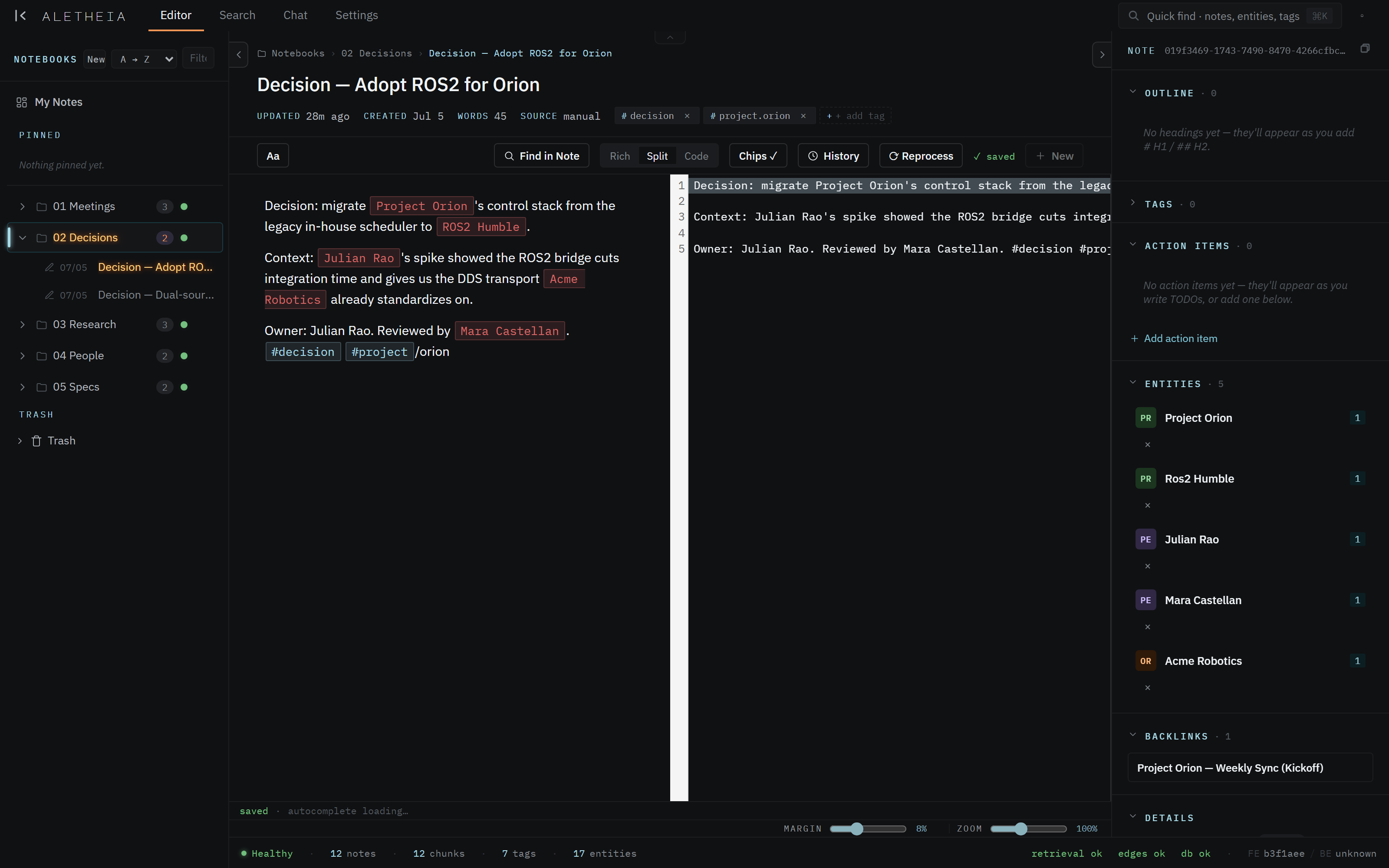
The view mode lives in the URL (?view=rich|split|code), so a link to a note can preserve it.
Formatting
Everything you'd expect, from the toolbar or Markdown shortcuts:
- Blocks — Headings (H1–H3), bullet & numbered lists (nestable), blockquotes, code blocks, horizontal rules, tables.
- Inline — bold, italic,
strikethrough,code, links, and a font-color picker. - Insert — images, file attachments, tables, and inline tokens (note-links, tags, entities) via the insert modal.
- Markdown as you type —
#for a heading,-for a bullet,>for a quote, and so on.
Chips: your notes are alive
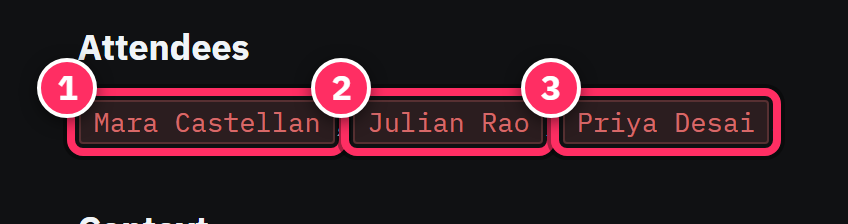
In Rich view, three kinds of text become interactive chips:
- Entities (
@Mara Castellan) render as chips that open that person/org/project. - Tags (
#project/orion) render as chips that jump to a filtered search. - Note-links (
[[note:…|quote]]) render as citation pills that open the linked note and scroll to the quote.
The Chips ✓ toggle in the toolbar turns this rendering on/off if you'd rather see the raw tokens while editing.
Find (and replace) in a note
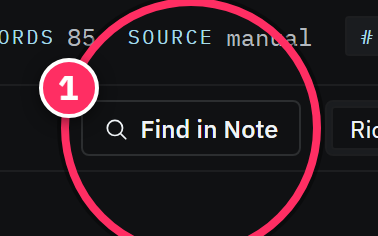
Find in Note (toolbar, or ⌘F / Ctrl+F) opens an in-note find bar with next/previous, a
match counter, and replace / replace-all. It supports case-sensitive and whole-word matching —
handy for renaming a term consistently within a long note.
Reprocess
Reprocess re-runs extraction on the current note. You rarely need it — extraction runs automatically on save — but it's the right button if you've heavily edited a note and want its entities/tags/chunks refreshed immediately rather than waiting.
History
History opens the note's revision timeline. Every save is versioned; you can view and restore any earlier version. This is your safety net against a bad edit.
Drag & drop
- Drop a
.mdfile onto the editor and it's imported as a new note. - Drop any other file and it's attached to the current note (see History & attachments).
Best practice — write naturally, let extraction do the filing
Don't hand-tag everything or manually list attendees. Write the meeting note the way you'd write it in any editor — name people in prose, mention the project — and the pipeline turns that into entities, tags, and links. The chips in the screenshot above were all extracted from ordinary sentences.
Things to watch out for
- Extraction is a few seconds behind you. Right after saving, the sidecar may briefly show "Loading…" or fewer entities than the finished result. Give it a moment.
- Code view is literal. Pasting rich content into Code view pastes raw Markdown — switch to Rich to paste formatted content, or Code to paste Markdown source.
- Reprocess costs a pipeline run. It's cheap, but don't hammer it; automatic extraction already handles normal edits.
Next: The metadata sidecar →