Accounts, desktop & updates
The remaining settings and the differences between the web and desktop app.
Accounts & workspaces
Each account has its own private workspace — its own notebooks, notes, entities, and history — isolated from every other account. You sign in with your account and see only your corpus.
- Signing in with your usual account returns you to your existing workspace.
- A new account starts a fresh, empty workspace. (Signing in with a different email is how you'd get a clean second workspace — it won't show you someone else's data.)
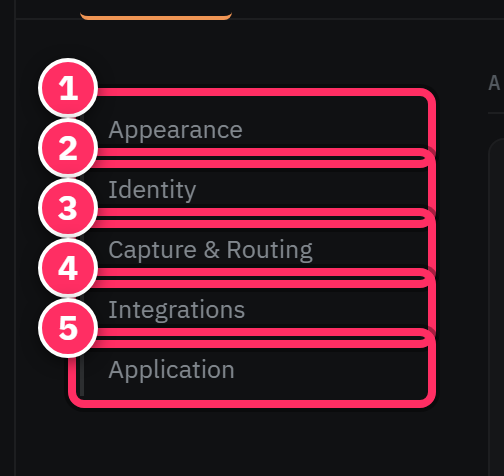
- Identity within a workspace — set your owner name and entity under Settings → Identity so personalized views work.
One account, one corpus
Isolation is the point: your notes are yours. If you ever land in an unexpectedly empty workspace, you've almost certainly signed in with a different email than usual — sign out and back in with the right one.
The desktop app
Aletheia ships as a desktop application (in addition to the web app). It loads the same product and the same corpus, with a few native advantages:
- A local MCP connector. The desktop app runs a localhost MCP server that supports one-click connector setup for Claude Desktop / Claude Code on the same machine — see Connecting a client.
- Native clipboard & drag-drop. Pasting images from the clipboard and dragging files in use native OS paths, which the browser sandbox can't always provide.
- A real window. Frameless window with its own controls (minimize / maximize / close) and drag region.
The web app is the most convenient way in — nothing to install — and has full feature parity for reading, writing, search, and chat. Reach for the desktop app when you want the local MCP connector or heavy image/clipboard workflows.
Software updates
The desktop app checks for updates and can install them in place — you'll be prompted when a new version is available. The current version is shown in Settings. The web app is always current (it's whatever's deployed).
Other application settings
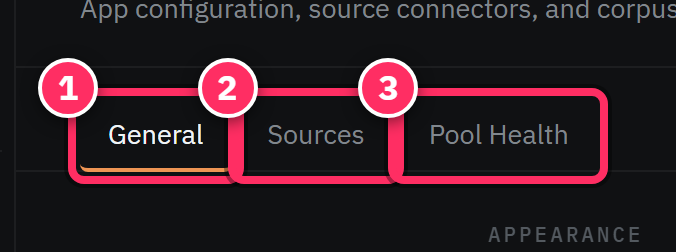
Under Settings → General → Application you'll also find utilities like bulk Markdown import (also on the Sources tab) and other app-level configuration. It's the catch-all for everything that isn't appearance, identity, routing, or integrations.

Which client for which job
Do your day-to-day capture and reading wherever's convenient — web or desktop, they share one corpus. Keep the desktop app around for the moments the browser can't serve: one-click MCP setup and rich clipboard/drag-drop.
Next: Keyboard shortcuts →