Connecting a client
Wiring your AI assistant to your corpus takes a couple of minutes and pays for itself the first time you don't have to re-explain your projects. The connection is managed from Settings → General → Integrations.
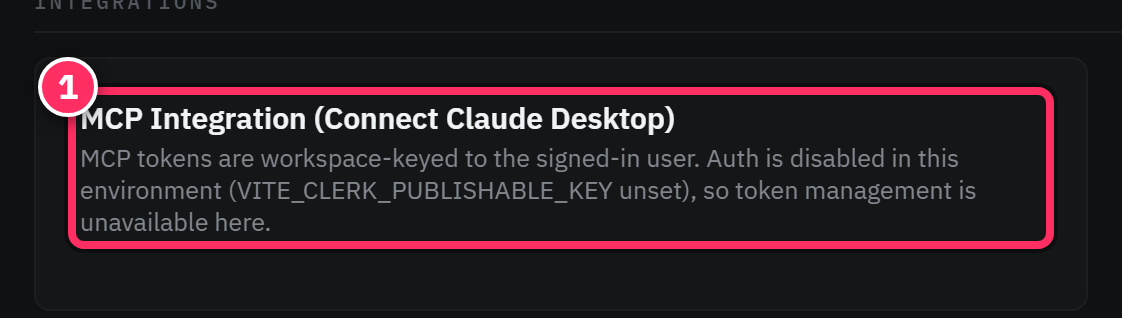
About this screenshot
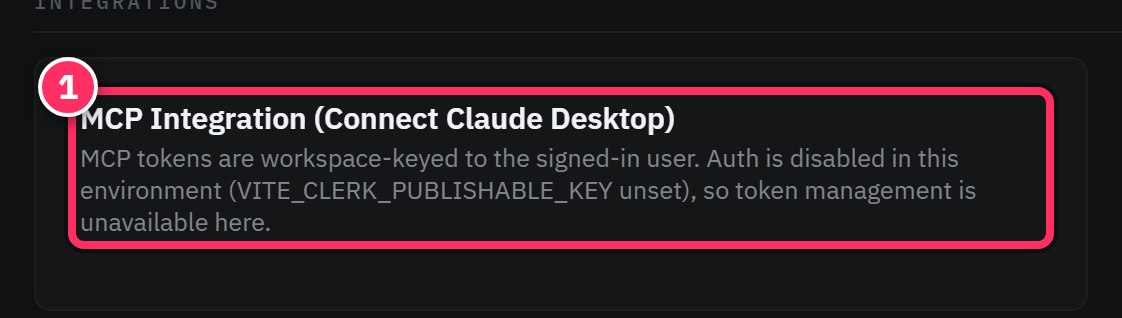
It's captured from a local build with sign-in disabled, so the panel shows that token management is unavailable until you're signed in. In the real app — signed in — this is where your token, connected devices, and the Claude Desktop config live.
What you'll set up
You reach it from the Settings sub-navigation:
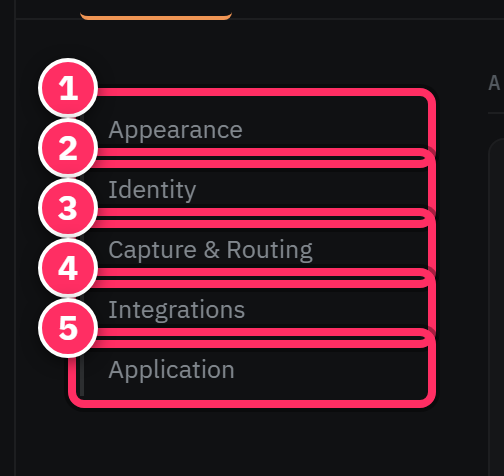
The Integrations panel gives you what an MCP client needs:
- A token. Your MCP tokens are workspace-keyed to your signed-in account, so a client connects to your corpus and nothing else. Reveal and copy it here.
- A ready-made client config. The panel generates the configuration snippet (for Claude
Desktop's
claude_desktop_config.json) so you can paste rather than hand-write it. - Connected devices. A list of the clients currently connected, so you can see and manage what has access.
Claude Desktop
- Open Settings → General → Integrations and reveal your token / copy the generated config.
- Add it to Claude Desktop's MCP configuration (the panel's snippet drops straight in).
- Restart Claude Desktop. Aletheia's tools appear; ask it to search or summarize your notes.
Claude Code
Claude Code speaks MCP too. Add Aletheia as an MCP server using the token and endpoint from the Integrations panel, and the tool catalog becomes available in your coding sessions — useful for pulling project decisions and context straight into your work.
The desktop app's local connector
The Aletheia desktop app runs a local MCP server that supports one-click connector setup (via OAuth) for clients on the same machine — so connecting a local Claude Desktop / Claude Code can be a matter of approving a prompt rather than copying tokens. (Web clients can't reach a localhost server, so this path is desktop-only; the token method above works everywhere.)
Security notes
- Tokens are per-account and workspace-scoped — a connected client sees only your workspace.
- Treat the token like a password. If a device is lost or a token leaks, revoke it from the devices list and generate a new one.
- Because MCP clients can write to your corpus, note revision history is your safety net — every AI edit is versioned and restorable.
Best first task for a connected assistant
Once connected, ask your assistant: "Using my Aletheia notes, summarize the current state of \<project> and list open action items." It exercises search, note access, and action-item tools at once — and immediately shows the value of your assistant having memory.
Next: The tool catalog →