History & attachments
Two safety-and-substance features that live on the note: a full revision history, and file attachments.
Note history & revisions
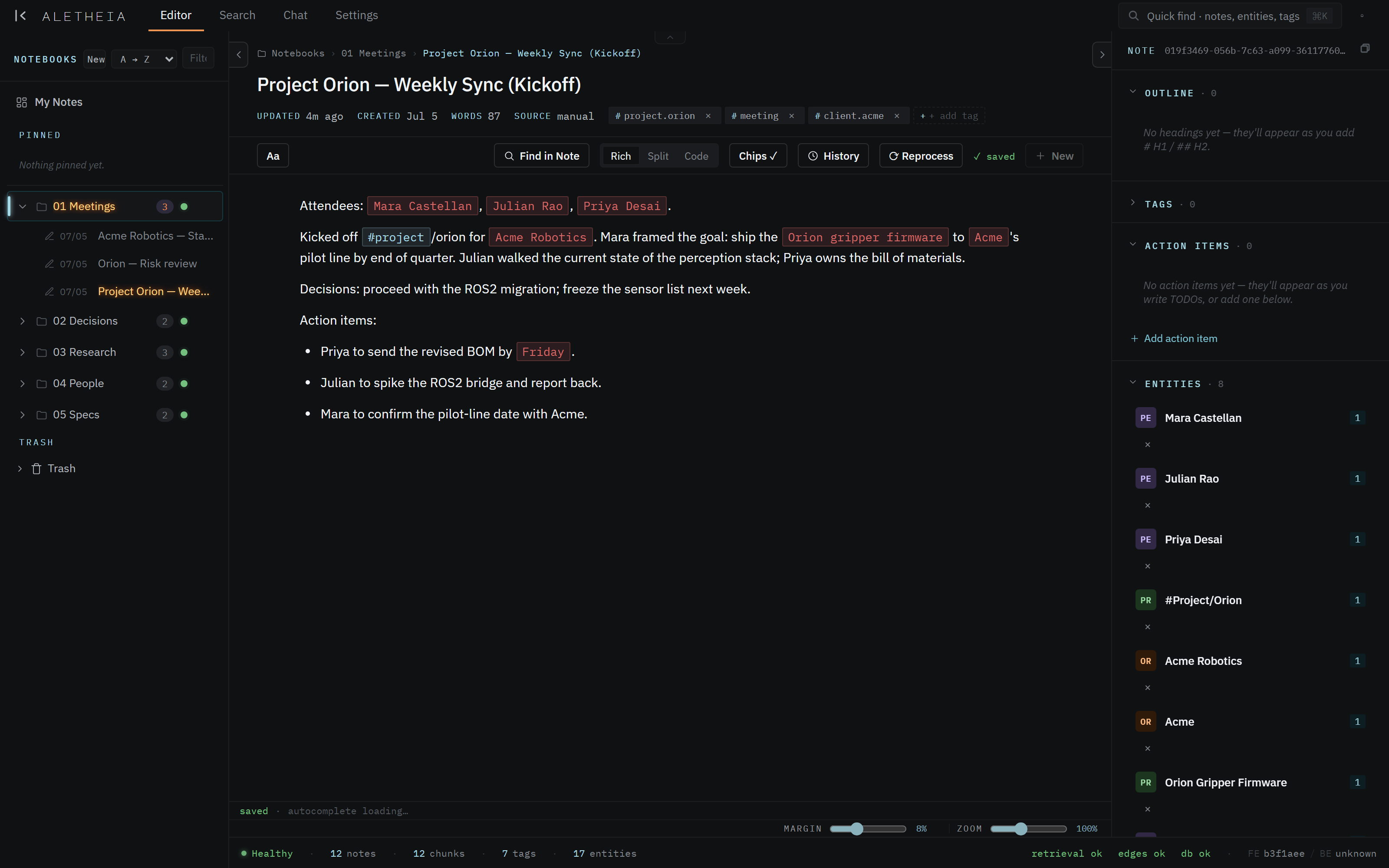
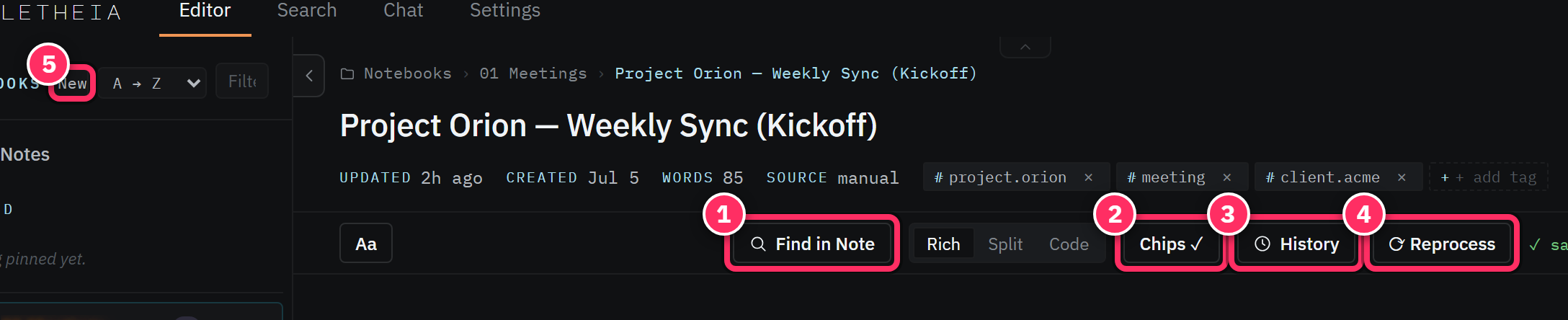
Every time a note is saved, Aletheia keeps a revision. The History button in the editor toolbar opens the revision timeline: browse earlier versions, see what changed, and restore any of them.
This exists for a real reason. Notes can be edited by you, by an import that re-syncs, or by an MCP client acting on your behalf. History means none of those can lose your words — a bad edit is always one restore away.
Why this matters for AI editing
When you let an assistant write to your corpus through MCP, it's editing real notes. Revision history is the guardrail that makes that safe: if a tool call mangles a note, you restore the previous version. Prefer surgical edits (append/insert/replace a section) over full-body rewrites so history stays legible.
Attachments
Attach files to a note by dropping them onto the editor (any non-.md file), or via the
attachment insert control in the toolbar. Attachments are stored with the note and render as
clickable file chips in the body; images render inline.
- Images — drop or paste an image and it embeds where your cursor is.
- Files — PDFs, spreadsheets, etc. attach as a chip you click to open.
Dropping a .md file is different: that's treated as an import (a new note), not an
attachment — see Sources & ingestion.
Keep the evidence with the note
Attach the source artifact — the slide, the spec PDF, the screenshot — to the note that discusses it. It stays retrievable in context, and you're never hunting a separate drive for "the file that went with that meeting".
Next: Search →