Interactive diagrams
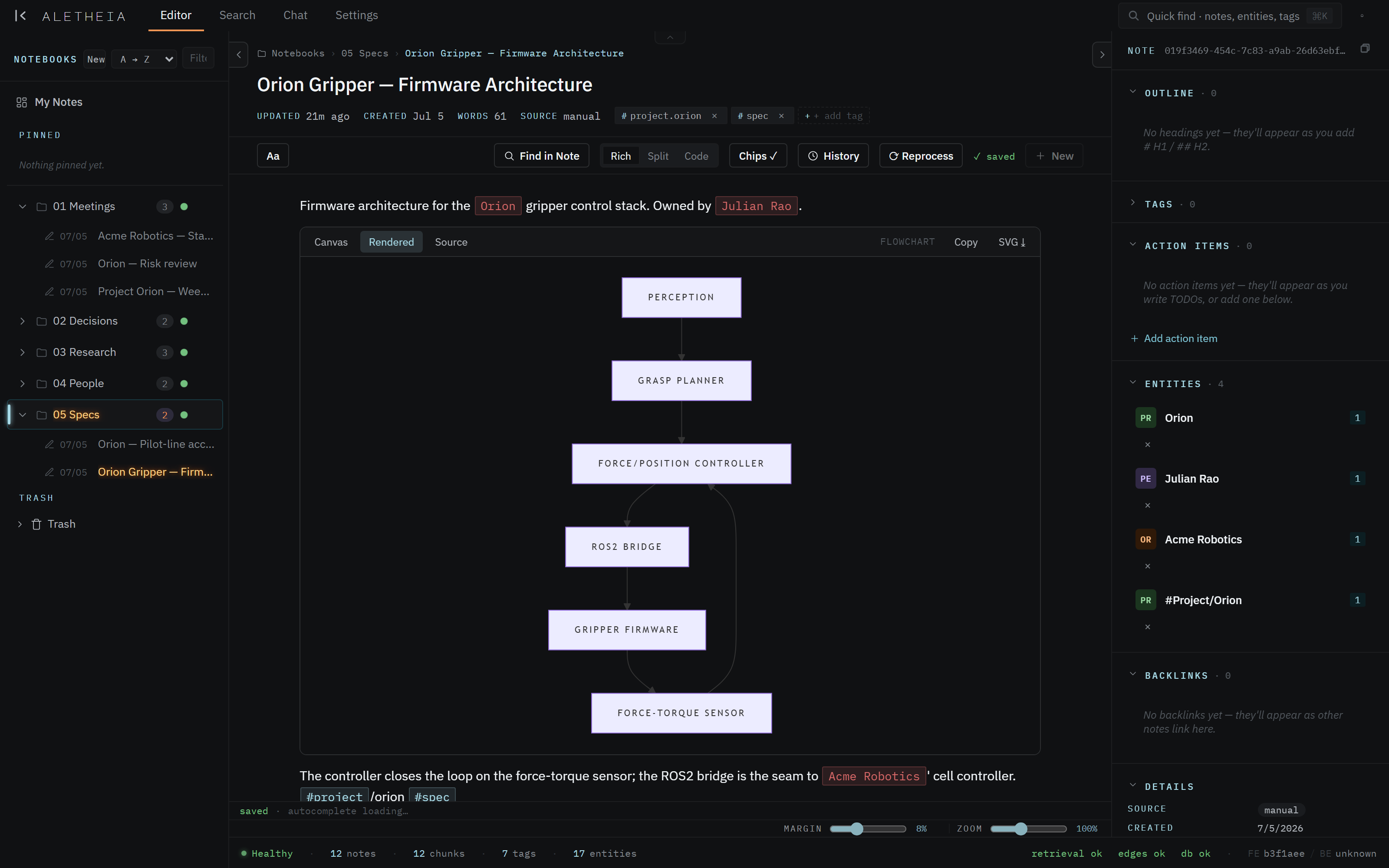
Aletheia renders Mermaid diagrams inline in your notes — flowcharts, graphs, sequence diagrams — and lets you edit them on a drag-to-arrange canvas rather than only in code.
Adding a diagram
Write a Mermaid code block in your note — a fenced block tagged mermaid:
```mermaid
flowchart TD
  A[Perception] --> B[Grasp Planner]
  B --> C[Force/Position Controller]
  C --> D[ROS2 Bridge]
```
Aletheia detects it and renders it as an interactive diagram block instead of raw code.
The three views
Each diagram block has its own segmented control:
| View | What it is |
|---|---|
| Canvas | The interactive editing surface — drag nodes, add shapes, arrange layout |
| Rendered | The clean, laid-out diagram (what you'd want in a shared doc) |
| Source | The underlying Mermaid text — edit it directly and the diagram updates |

Editing on the canvas
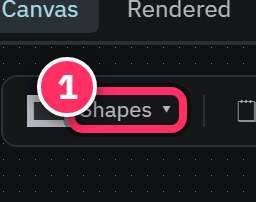
In Canvas view you get a toolbar for adding shapes, notes, and lanes, plus zoom/fit controls and a minimap for large diagrams. Drag nodes to arrange them; your layout is remembered alongside the diagram. It's the difference between fighting Mermaid's auto-layout and just placing things where they make sense.
Exporting
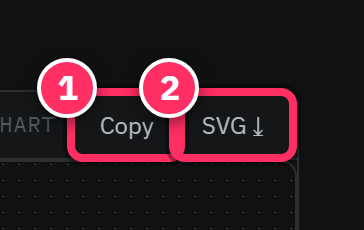
Copy and SVG ↓ in the block header let you lift the diagram out as an image for a deck or doc. The rendered SVG travels cleanly at any size.
Diagrams are just notes
A diagram lives inside an ordinary note, so it's searchable, linkable, and versioned like any other content. Keep an architecture or process diagram in the relevant spec note and it stays with the context that explains it.
Mermaid syntax still applies
The Source view is Mermaid — a syntax error there shows an error rather than a diagram. When hand-editing complex diagrams, the Source view's live update is the quickest way to catch a typo.
Next: History & attachments →