Notebooks, Inbox & Trash
Notebooks are the folder tree down the left side of the app. They exist to organize the corpus for you — retrieval, search, and chat never depend on where a note is filed, so you're free to organize loosely and lean on search for recall.
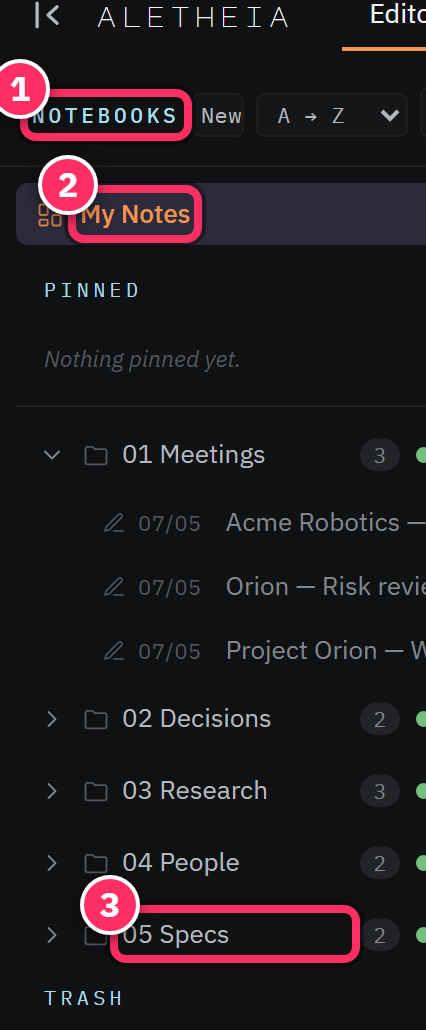
The tree
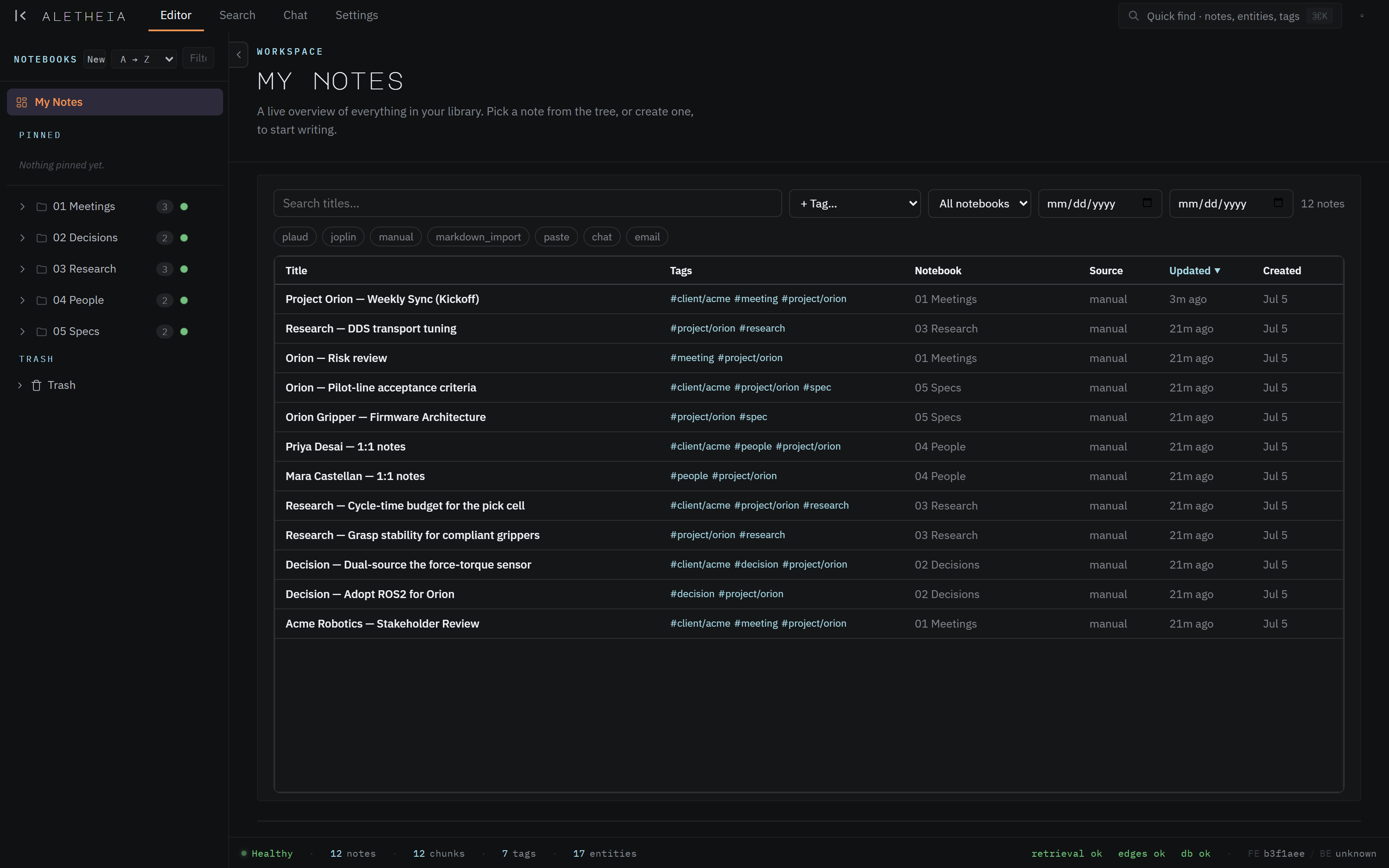
- My Notes (top) — the everything-view; opens the workspace table of all notes.
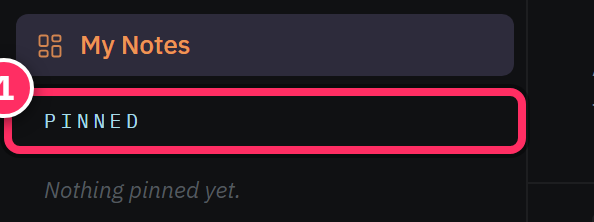
- Pinned — notes you've starred, kept at the top for quick access.
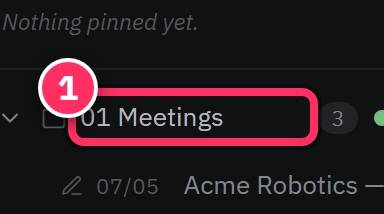
- Your notebooks — nest freely; each row shows a live note count and a status dot. Expand with the chevron.
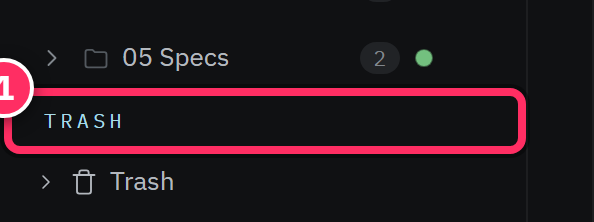
- Trash (bottom) — soft-deleted notes, restorable.
Collapse the whole pane with the chevron at its top edge when you want more room for the editor.
Creating & organizing
- New note / subfolder — + New note at the top, or right-click a notebook for a context menu (New note, New subfolder, Rename, Delete, Move to…).
- Rename inline — right-click → Rename turns the row into a text field;
Enteraccepts,Esccancels. - Drag to reparent — drag a note onto a notebook to move it; drag a notebook onto another to nest it.
Inbox
Inbox is a special, undeletable notebook that receives email-to-inbox captures — you forward or send mail to your inbox address (configured in Settings → Sources) and it lands here as a note. Treat it as a landing pad: triage from Inbox into real notebooks (or let the autorouter file it for you).
Trash
Deleting a note is a soft delete — it moves to Trash with a deletion timestamp, not gone. Open Trash to see recently deleted notes and Restore any of them. This is deliberate: a mis-click is always recoverable.
Permanent deletion is not a casual action
Trash protects you from accidents. Emptying it (permanent deletion) is intentionally not a one-click, in-passing action — because it's irreversible. When in doubt, leave it in Trash; it costs nothing.
Best practice — shallow trees, strong tags
Because search doesn't care about folders, a deep, fussy notebook hierarchy earns you little.
A pragmatic structure is a handful of top-level notebooks (e.g. one per active project, plus
Meetings, Decisions, Reference) and lots of tags. Let the
autorouter keep the filing tidy so you don't have to.
Next: Tags & entities →